
How to Use Tails for Crypto Research in 6 Steps
• 8 min read • by Kelvin Jones
How to Use Tails for Crypto Research in 6 Steps
Opening wallet or market research in the same browser you use for email, shopping, and social accounts can connect otherwise separate activity through cookies, saved logins, and other browser data. A dedicated Tails session gives you a different boundary: Tails is a live operating system that runs from a USB stick and sends ordinary internet traffic through Tor instead of your usual desktop connection.
This guide uses Tails for one limited purpose: reading public crypto documentation and service information without bringing your everyday browser profile into that session. It does not cover signing transactions, importing wallets, or bypassing a service's rules. For crypto privacy, this separation is one limited measure; Tails is one of several privacy tools, not an anonymity guarantee.
What you need
- A Windows 8-or-later PC that can start from USB, with a 64-bit x86-64 processor and at least 3 GB of RAM for smooth use.
- A new, dedicated USB stick of at least 8 GB. Installing Tails erases all data on it.
- A trusted computer and internet connection for downloading and verifying the official Tails image.
- A single, lawful research task that does not require logging in, entering a wallet address, or moving funds.
The steps below use Tails 7.17.1, the current release on November 20, 2026, and Rufus 4.16, the current stable Rufus release listed on its official site that day. The prior Tails 7.17 release notes list Tor Browser 16.0.1 and Tor 0.4.9.16; the Tails 7.17.1 notes describe the subsequent security and kernel changes. Menus and downloads were checked against the official Tails installation, first-steps, and Tor documentation on November 20. If your device is a Mac with an Apple processor, a phone, or a tablet, this workflow does not apply; check the current hardware requirements first.
Why a separate session matters
This month's Monday article on Mozilla's privacy study explains how network and application records can remain linkable. Wednesday's network-isolation test examines what different observers can see. This tutorial applies a different layer: it separates a short research session from your regular operating system and browser profile.
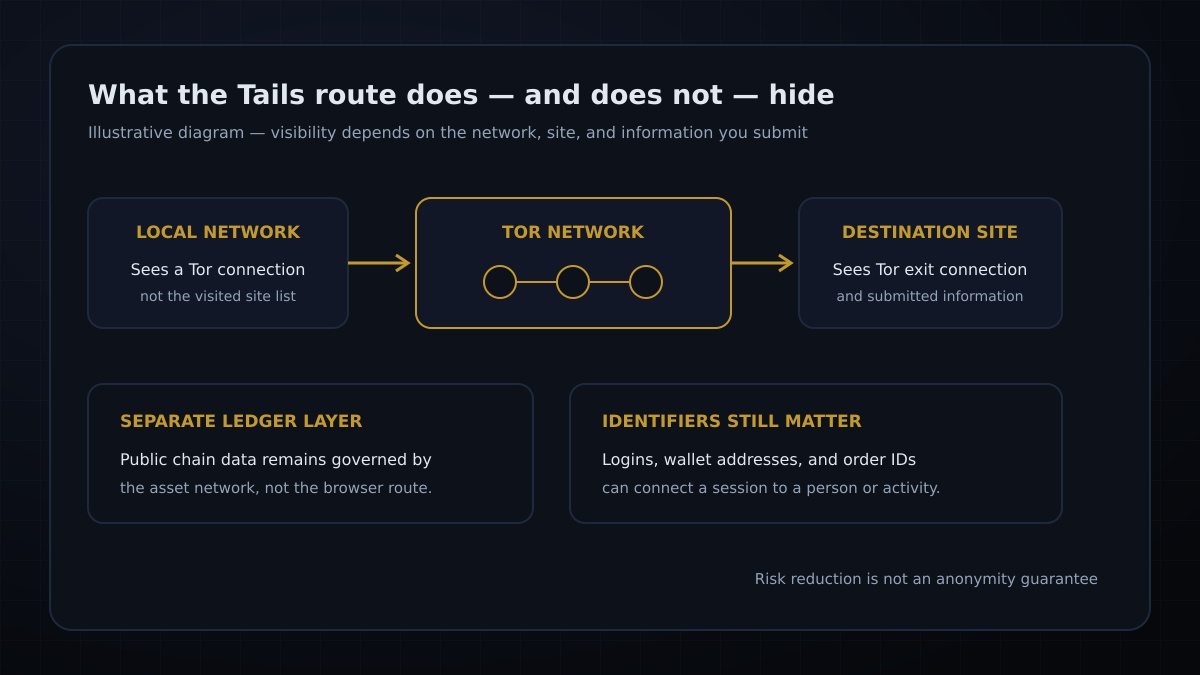
Tails sends internet traffic through the Tor network, which uses three relays. Tails blocks applications from making direct internet connections before Tor is ready. This changes what your local network and destination service can observe, but it does not erase identifiers you type into a site. Tor also has an important limitation: your internet provider and local network can see that you connect to Tor, while the sites you visit may recognize Tor exit-node addresses or block them. See Tails' Tor connection guide and Tor limitations.
Illustrative diagram: visibility boundaries, not a measured privacy score. A Tor route separates the user’s network address from a website’s view of the connection, but the site still receives the request and any information entered into it.
Do not confuse this workflow with Oblivious HTTP (OHTTP), which depends on separate relay and gateway roles supported by an application. Do not confuse Tor Browser with onion services either: onion services are sites reachable through Tor, not a guarantee that a page is trustworthy or appropriate for a crypto task.
The six-step Tails research workflow
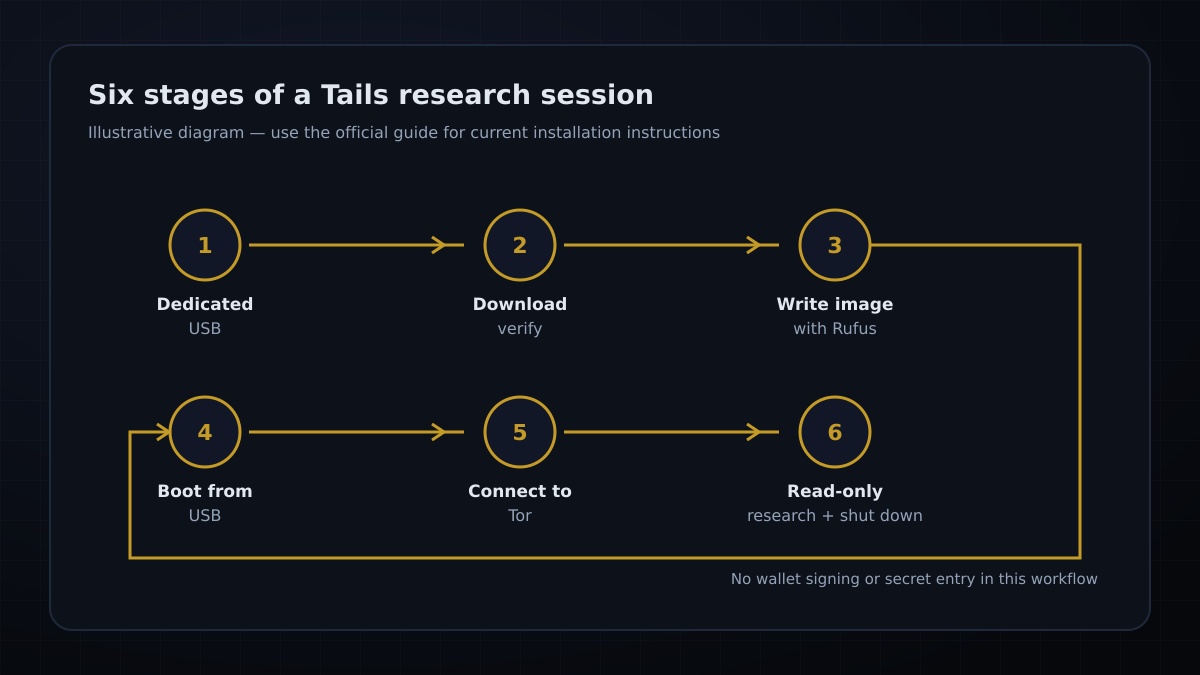
Illustrative diagram: prepare, verify, boot, connect, research, and shut down.
-
Set aside a USB stick. Use a new or empty USB stick that you can dedicate to Tails. Tails requires at least 8 GB, and the install process erases the selected stick. Copy off anything you need first. Do not select a backup drive or a stick containing your only copy of files.
-
Download and verify the current image. From a trusted Windows PC, use the official Tails for Windows installation guide and download the USB image it links to. On November 20, 2026, the current release was Tails 7.17.1. Follow the same page's browser verification step and wait for a successful verification message. If verification fails or the filename or extension does not match the official instructions, stop and download it again from the official site. Tails 7.17.1 is especially important because its November 17 release fixed a critical Tor Browser extension vulnerability.
-
Write Tails to the dedicated USB. Download Rufus 4.16 from the official Rufus site using the link in the Tails installation guide. Open it, choose No in the update-policy dialog as the guide directs, connect the dedicated stick, and check its identity in Rufus's Device menu before proceeding. Select the verified Tails image, confirm that it is the
.imgUSB image—not the.isoimage—and start the installation. Rufus will erase the selected USB stick. If there is any uncertainty about which device is selected, cancel before writing. -
Start the computer from the USB. Follow the Windows boot sequence in the official Tails guide. For later sessions, Tails recommends connecting the USB stick only while Windows is shutting down, as a precaution against a compromised Windows system changing it. From Windows, hold Shift while selecting Power, then Restart. At Choose an option, select Use a device, then USB HDD. If those options are unavailable, follow the PC boot-menu instructions in the official Tails guide for your computer; do not change unrelated firmware settings. When the Tails Boot Loader appears, let the default Tails entry start.
-
Start a clean, single-purpose session. In the Welcome Screen, choose your language and keyboard layout, then select Start Tails. For this one-off research task, do not unlock Persistent Storage or set an Administration Password. After the desktop loads, connect to your local network and follow the Tor Connection assistant in the official connection guide. Choose the documented automatic connection unless your situation requires a different, lawful configuration. Wait for the Tor status icon to show that you are connected. Tails cannot reach the internet until Tor is connected.
-
Research, verify the route, and shut down. Use Tor Browser only for the public documentation or service pages needed for this task. Avoid signing into personal accounts, entering wallet addresses or order identifiers, downloading unknown files, and mixing unrelated research into the same session. To inspect the connection, click the Tor status icon and choose View Tor Circuits; the Tor circuits documentation explains the list of circuits and relays used for connections. When finished, use the system menu to choose Power Off as described in the Tails shutdown guide. Do not pull out the USB while Tails is running.
The route view is a check that Tor is connected, not proof that no observer can correlate traffic. Tails documents that its automatic clock synchronization can contact Fedora's captive-portal detection service outside Tor. It also warns that an observer monitoring both ends of a Tor circuit may correlate timing. The Tor limitations guide describes these boundaries.
Common mistakes and privacy leaks
- Using an old image. The current release was Tails 7.17.1 on November 20, 2026. Check the release page again before installing; a newer security release may replace it.
- Overwriting the wrong disk. Rufus writes to the selected device and erases its data. Confirm the dedicated USB by its device entry and capacity before continuing.
- Treating Tor as invisible. Your network can see a Tor connection, and websites can block Tor or recognize exit-node traffic. A bridge is a separate configuration with trade-offs; it does not make all other signals disappear.
- Signing into a familiar account. A login can identify you even when the connection comes through Tor. Keep this session for public, read-only research.
- Entering wallet details. A public address, order code, or transaction identifier can link the session to activity. Never enter a seed phrase, private key, or wallet password into a research session or share them with support.
- Reusing a session for different purposes. Tails warns that activity within one session can be linked. Use a fresh session for a different purpose, and do not assume Tor hides your behavior from the site itself.
- Assuming the computer is trustworthy because Tails runs. Tails cannot protect against compromised firmware, hardware keyloggers, or an installer created on a compromised system. Use a device you control and trust.
For official troubleshooting, return to the Tails Windows install guide and the PC startup guide. Avoid improvising with unverified commands or changing BIOS settings based on generic advice.
How AnonSwap fits into this workflow
AnonSwap's published materials describe its non-custodial swaps as available without an account. Those product details do not mean Tails is built into AnonSwap, that a swap is anonymous, or that a route collects no metadata. The Tails session is useful here for reading public information, not for proving a swap's privacy properties.
If you later consider a swap, review the actual route and current partner terms before sending funds. Routing partners, the asset, volume, and local law can affect what a swap requires. A Tor connection does not change public blockchain records, replace a wallet's security process, or remove legal and tax responsibilities. Preserve records required where you live.
Your Privacy Checklist for This Week
- Check the Tails release page and use the verified current USB image.
- Use a dedicated USB stick and confirm the selected Rufus device before writing.
- Start Tails without unlocking Persistent Storage for this one-off task.
- Wait for the Tor status icon to show a connection before opening public research pages.
- Keep the session read-only; do not sign in or enter wallet secrets or identifiers.
- Shut down from the system menu and review the limits of Tor before relying on it.
Sources: Tails 7.17.1 release notes (November 17, 2026); Tails 7.17 release notes (November 11, 2026; Tor Browser 16.0.1 and Tor 0.4.9.16); Tails Windows installation and download-verification guide; Tails Welcome Screen, Tor connection, Tor circuits, PC startup, system requirements, shutdown, and Tor-limitations documentation; Rufus 4.16 (November 17, 2026); AnonSwap product descriptions reflected in this repository. Software versions and documentation checked November 20, 2026. Informational only; not legal or financial advice.
Published November 20, 2026. Last updated November 20, 2026.
Frequently asked questions
What does Tails isolate during crypto research?
Tails routes ordinary internet traffic through Tor and blocks direct connections, creating a separate operating-system session. Your local network can still see that you connect to Tor, and a website can still identify information you submit.
Does Tails make crypto transactions anonymous?
No. Tails changes the network path for a session; it does not hide public blockchain records, remove wallet addresses you submit, or guarantee that a service cannot identify you.
Which Tails version was checked for this workflow?
The Windows installation was checked against Tails 7.17.1 and Rufus 4.16 on November 20, 2026. Tails 7.17 release notes list Tor Browser 16.0.1 and Tor 0.4.9.16; the 7.17.1 release notes describe its subsequent security and kernel changes.