
How to Encrypt Crypto Records With age in 6 Steps
• 8 min read • by Kelvin Jones
Conceptual illustration: encrypt a local records file, verify recovery, and keep wallet secrets out.
How to Encrypt Crypto Records With age in 6 Steps
Transaction notes, tax records, and service receipts can contain wallet addresses, dates, and other details you may not want exposed if a device or backup is accessed. Encryption can make the contents of a file unreadable without the right passphrase. This guide walks through a small, testable local workflow using age, a free, open-source file-encryption tool. It does not make a transaction private on a public blockchain or protect a device that is already compromised.
The workflow is deliberately limited to an ordinary records file. Do not put a wallet recovery phrase, private key, or wallet password in the sample file. Never share those secrets with another person or support service.
What you need
- A Linux or macOS computer that you control, with an up-to-date age v1.3.2 installation from the official project or a trusted operating-system package source.
- One ordinary text or CSV file containing only the records you intend to protect. Remove unrelated identifiers first.
- A unique, strong passphrase stored in a reputable password manager that you can access when needed.
- A little free disk space for the encrypted copy and a separate backup location.
The commands below are for Linux and macOS shells. The official age project also publishes Windows builds, but these exact shell steps are not a Windows PowerShell walkthrough. The commands were checked against age v1.3.2, the current official release on November 13, 2026. Read the official age README and release notes before using a different version.
Why encrypting a records file matters
Encryption protects data in a defined place: here, the contents of the resulting file while it is stored. The contents are not the only data that can reveal something about your activity. A filename, file size, modification time, device, cloud account, or public blockchain can expose context even when a file's contents are encrypted.
This week's Monday article on vendor readiness discusses how organizations prepare for encryption changes. Wednesday's article on encryption and wallet metadata explains why an encrypted channel does not hide every surrounding record. This tutorial applies that distinction to a task you can do locally: protect one file, check that you can recover it, and keep the original and the encryption passphrase under control.
The age documentation describes passphrase-based file encryption with -p and decryption with -d. The command does not create an account or send the file to age's project servers. Its security still depends on a trustworthy device, a passphrase you do not lose, and careful handling of both the plaintext and encrypted copies.
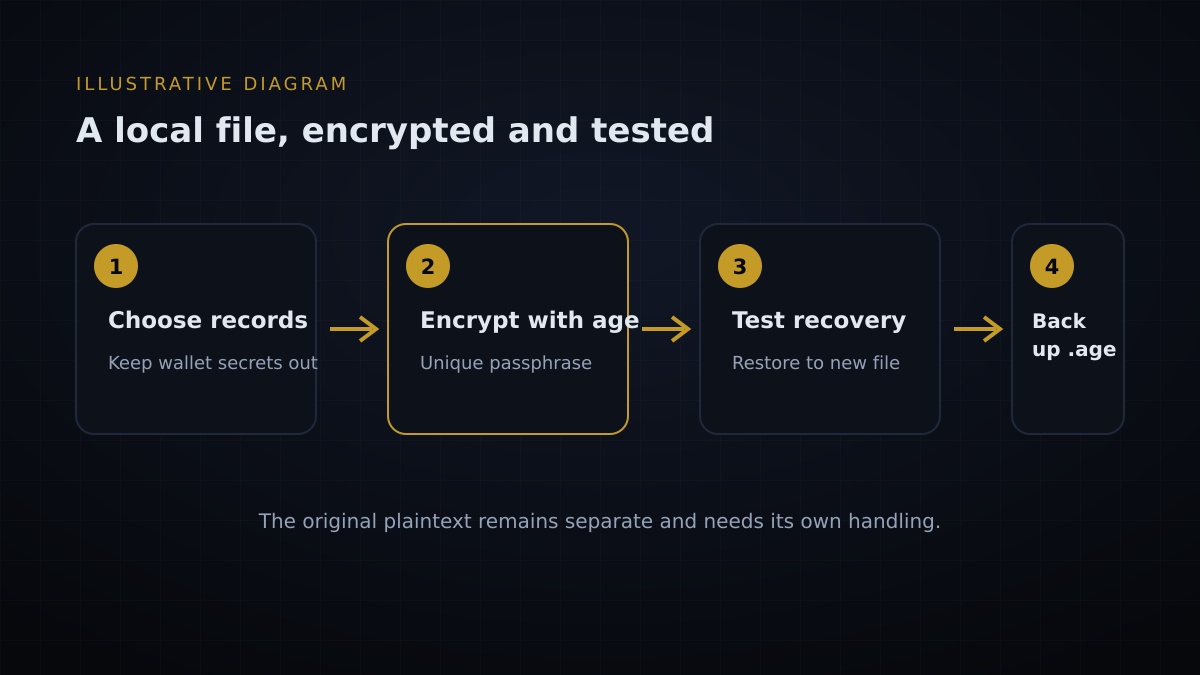
Illustrative diagram: encrypt, test recovery, then back up the encrypted copy.
The six-step local encryption workflow
1. Prepare a non-sensitive test file
Before using a real document, create a small test file with no personal information. Confirm that it contains only text you made up. This lets you check that age is installed and that you understand where the output will go without exposing transaction records.
On Linux or macOS, check the installed version:
age --version
Confirm that the result says v1.3.2 or a newer version you have checked against the official documentation. If the command is missing, use the age project's official installation guidance for your operating system; do not download an executable from an unverified mirror.
2. Choose the exact file and destination
Use a file you own and have permission to handle. Keep the example simple: the input is records.txt, and the encrypted output is records.txt.age in the same folder. Replace these example names with your own paths, but make sure the input and output are different files. The -o option writes the result to the path that follows it; age overwrites an existing output file.
Do not work in a shared folder or paste sensitive paths into a public chat. If you have a spreadsheet, export only the fields you need to a separate text or CSV file first. This tutorial does not prescribe a spreadsheet export process because software menus vary.
3. Encrypt with a unique passphrase
Run the command below from the folder containing records.txt:
age -p -o records.txt.age records.txt
When age prompts you, enter a strong, unique passphrase from your password manager. Do not reuse your email, wallet, or device password. Keep the passphrase in the password manager, not in the same folder as the encrypted file.
If you forget the passphrase, age cannot recover the file for you. If another person obtains both the encrypted file and your passphrase, encryption cannot protect its contents from them.
4. Check that the encrypted file was created
Look in the chosen folder for records.txt.age and confirm that it is not an empty file. Do not open it in a text editor expecting readable content, and do not send it to a website that offers to "check" encryption. The presence of an output file is not proof that you can decrypt it; test that next.
The source file remains in place after encryption. This is useful for recovery, but it also means the original contents remain readable wherever that plaintext copy exists. Encryption of the output does not retroactively protect the original.
5. Test recovery to a separate file
Decrypt the encrypted copy to a new filename so that the original is not overwritten:
age -d -o records-restored.txt records.txt.age
Enter the same passphrase when asked. Compare the restored file with your test file or records copy using a local editor. Confirm that the expected content is readable and that you did not accidentally choose a different input or output. Keep this recovery test local; do not upload either version to an online comparison service.
For important records, perform this check before relying on the encrypted copy. Keep the passphrase accessible through your password manager and make sure you have a separate, secure way to regain access to that manager.
6. Back up the encrypted file and review plaintext copies
Copy records.txt.age to a separate backup location you control. If you use a cloud provider or removable drive, understand that the provider or anyone with access to that storage may still observe the filename, file size, upload time, and account details. Encryption here covers file contents, not every piece of storage metadata.
Keep the plaintext only where you have a reason to use it. Deleting a file does not guarantee that all copies, temporary files, snapshots, or backups are erased; those behaviors vary by operating system and storage service. Do not claim that a simple delete command securely removes sensitive information. If the record is required for legal or tax purposes, retain and manage it according to the rules that apply where you live.
Common mistakes and privacy leaks
- Encrypting the wrong thing. The encrypted copy does not protect the original plaintext file, exported spreadsheet, or another backup.
- Losing the passphrase. Without it, you may not be able to recover the encrypted file. Test recovery before relying on the backup.
- Saving the passphrase beside the ciphertext. Anyone who gets both can read the file. Store the passphrase separately in a password manager.
- Treating a filename or upload as secret. Encryption does not necessarily hide the file's name, size, timing, or storage account.
- Putting wallet secrets into ordinary records. This workflow is not a safe substitute for a wallet's documented backup process. Never give anyone a seed phrase, private key, or password.
- Assuming this hides a transaction. A public blockchain's records remain governed by that network's design; encrypting a local note does not change them.
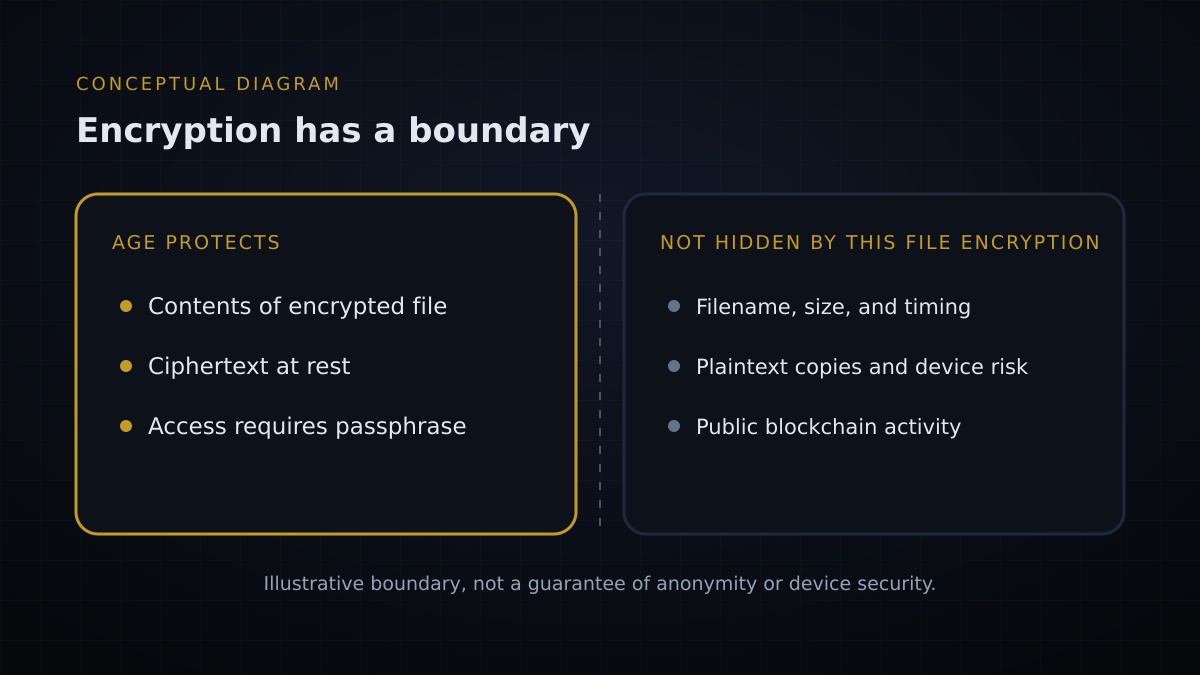
Conceptual diagram: file encryption protects contents, not all metadata or public records.
How AnonSwap fits into this workflow
AnonSwap's published materials describe its swaps as non-custodial and say registration is not required. Those statements describe the service's custody and account model; they do not mean a local encrypted file makes a swap anonymous or that every route processes no metadata. See this week's vendor-readiness article for the published service description and its limits.
Keep the layers separate: age encrypts a local file; a browser or network connection has its own data exposure; and a blockchain may publish transaction details. Routing partners, the asset, volume, and local law can affect what a swap requires. Check current route information and applicable rules rather than assuming that encryption, Tor Browser, onion services, or non-custodial swaps guarantee anonymity. This guide is general education, not a way to evade legal or tax obligations.
Your Privacy Checklist for This Week
- Choose a records file that contains no seed phrase, private key, or wallet password.
- Check that your age version is supported by official documentation.
- Encrypt the file with a unique passphrase and store that passphrase separately.
- Decrypt to a different filename and confirm recovery before relying on the backup.
- Back up the encrypted file and remember that encryption does not conceal all metadata or public-ledger activity.
Sources: age project, README and command reference and v1.3.2 release, checked November 13, 2026; AnonSwap, “The Encryption Clock Is Ticking: Crypto Privacy Starts With Vendors” and “The ‘Everlasting Security’ Claim—and the Wallet Metadata It Cannot Hide”, November 2026. This article is for informational purposes only and is not legal or financial advice.
Published November 13, 2026. Last updated November 13, 2026.
Frequently asked questions
What does this encryption workflow protect?
The age workflow encrypts the contents of one local file with a passphrase. It does not hide every filename or usage detail, protect a compromised device, or make public blockchain records private.
Which Privacy Engineering and Encryption tools are used?
This practical Privacy Engineering workflow uses the age v1.3.2 command-line tool to encrypt a local crypto-records file. Encryption protects stored file contents; it does not guarantee crypto privacy across services, networks, or public ledgers.
Can I use this to store a wallet recovery phrase?
No. This guide is for ordinary records, not seed phrases, private keys, or wallet passwords. Never share those secrets with anyone, including support staff.
Does encryption make AnonSwap or a transaction anonymous?
No. File encryption protects a specific file at rest. AnonSwap's published materials describe a non-custodial service without account registration, but routing partners, the asset, volume, public ledgers, and local law can affect a swap.