
How to Audit Crypto API Traffic in Firefox: A 6-Step Guide
• 8 min read • by Kelvin Jones
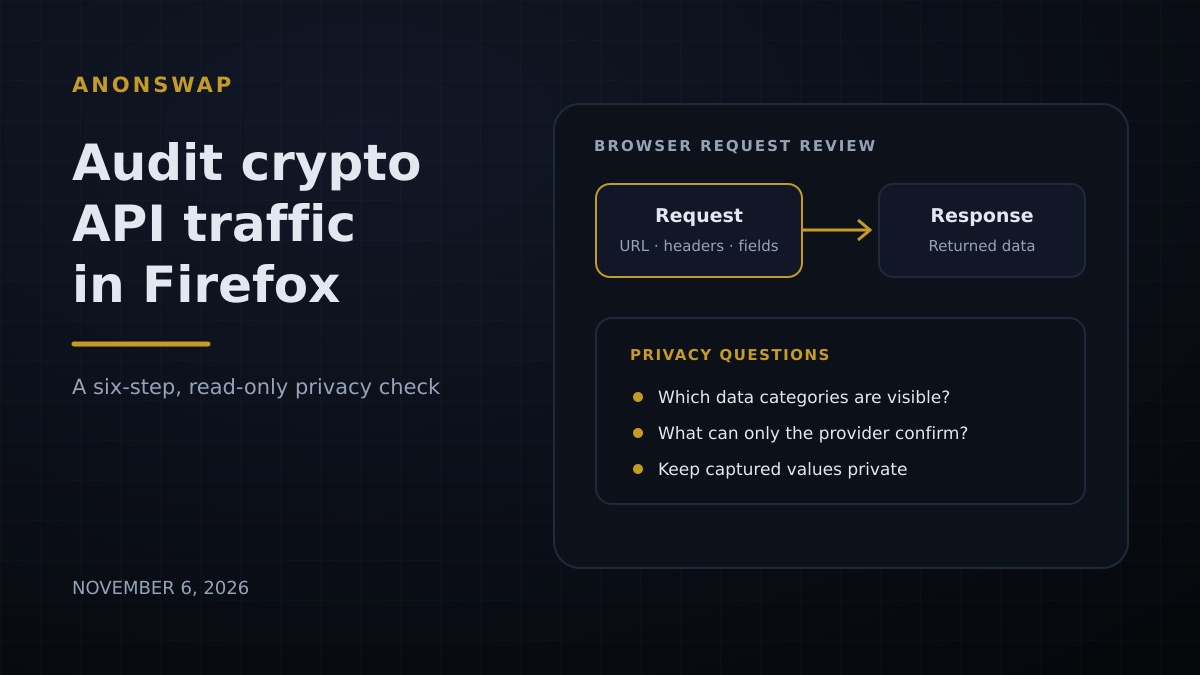
Illustrative diagram: inspecting a request and its response without sharing captured values.
How to Audit Crypto API Traffic in Firefox: A 6-Step Guide
A web page can display a simple balance or quote while exchanging several requests with services behind the scenes. Some requests are necessary to load the page. Others may contain parameters, identifiers, or response fields that deserve a closer look. You can inspect a browser's visible network activity without probing an API or submitting a transaction.
This beginner's walkthrough uses Firefox Network Monitor for a limited, read-only review of a public page. It helps you see what your browser sent and received during that visit. It cannot tell you whether every field is necessary, whether the provider stores it, or whether the server has correctly restricted access. Treat it as a privacy question checklist, not a security certification.
What you need
- Firefox 159.0.1 or later, updated through its normal release channel. Version 159.0.1 was first offered on November 3, 2026.
- A public page from a service you want to understand. Do not sign in, connect a wallet, open private account data, or begin a swap for this exercise.
- A few minutes to observe the page, plus a private note to yourself. Do not save or share a network capture.
- A clear boundary: inspect only your own browser session and pages you are allowed to use.
Why an API request is a privacy boundary
An application programming interface (API) is a defined way for software to request information or actions from another system. When a web page loads data, the browser may send a request and receive a response. Depending on the page and action, these can include a URL, query parameters, request headers, cookies, a submitted form or JSON body, and returned data.
The OWASP API Security Top 10 describes Broken Object Property Level Authorization as a risk in which an API exposes object properties that a user should not be able to access. OWASP notes that inspecting API responses can reveal sensitive properties. That is a server-side authorization issue; a visitor's browser inspection can flag a question, but cannot prove that a field was unauthorized or that another user could see it.
This distinction matters to crypto privacy: seeing a value in your browser is a reason to ask a question, not enough to conclude that funds or identities were exposed.
This week's Monday article on API-key privacy and Wednesday's look at purchase records and wallet ownership cover different layers of the same theme. This guide focuses on what your own browser can observe, not on either incident or on testing someone else's system.
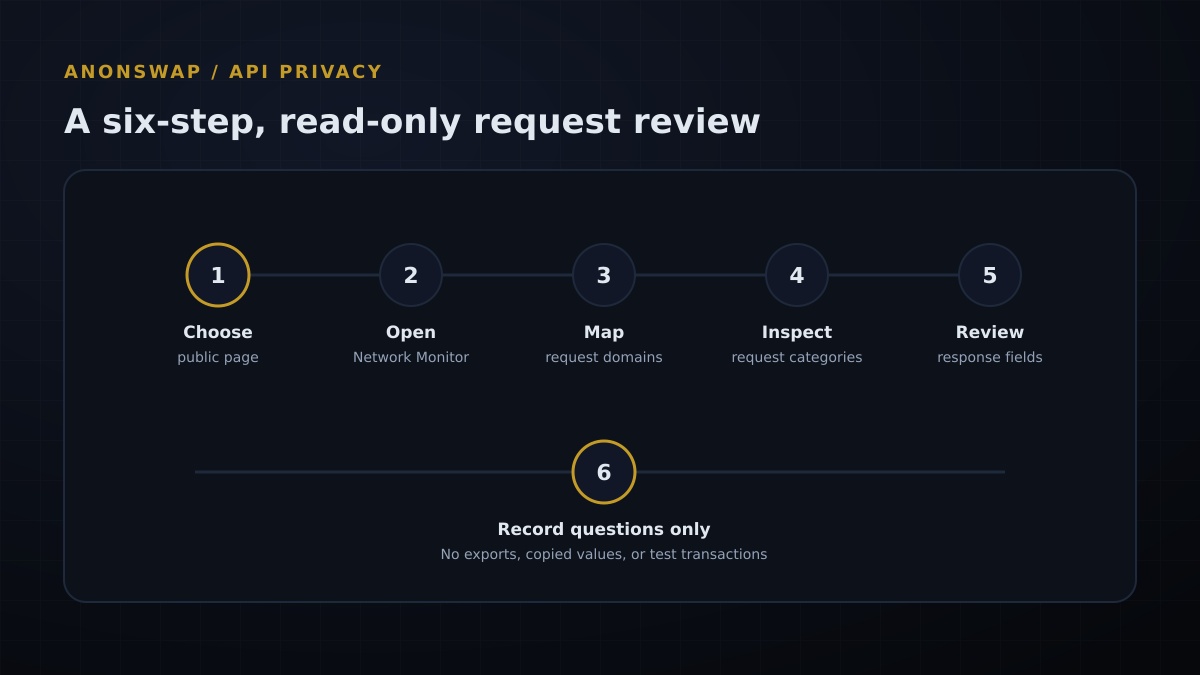
Illustrative diagram: a six-step, read-only browser review.
The six-step API privacy check
1. Choose a low-risk page
Select a public page that does not require an account and does not display personal information. A public help page or a non-interactive product page is a safer starting point than a wallet dashboard, quote form, or checkout screen. The goal is to observe routine page loading—not to trigger an API action.
If the page unexpectedly asks you to sign in, connect a wallet, provide an address, or accept a transaction, stop. Do not enter real information just to make the Network Monitor show more traffic. Avoid pages containing other people's account details even if they are visible in a shared screen or support session.
2. Open Network Monitor before loading the page
In Firefox, press Ctrl+Shift+E on Windows or Linux, or Cmd+Option+E on macOS, to open Network Monitor. Mozilla's documentation says the monitor begins collecting network requests when it is open. Start with a new tab and the public page you selected, so you can associate the resulting rows with one simple visit.
Keep the browser window private to you. You do not need to export a HAR file, copy a request as a command, or send captured data to anyone. Those actions can include sensitive values, and they are unnecessary for this check.
3. Map which requests belong to the page
Load the page once and scan the request list. The Network Monitor lists requests made while loading, and its columns can show information such as method, domain, file, and status. Look for requests that appear to fetch structured data, but do not assume that a path containing the word "api" is harmful or unexpected.
Make a rough inventory of the domains involved and whether they appear to be the site's own domain or a separate service. A separate domain may serve ordinary functions such as content delivery or protection; its presence alone is not evidence of tracking or a privacy violation. Note only the domain and general purpose you can reasonably infer. Do not copy full URLs when they include query values or identifiers.
4. Inspect the request without revealing its contents
Select a request row to open its details. Mozilla documents tabs for headers, request data, responses, cookies, and other information. First note the request method and destination domain. Then check whether its URL, parameters, headers, cookies, or body visibly contain personal or account-related values.
Look for categories, not secrets: an email address, account identifier, wallet address, session token, authentication header, location, or unusually detailed profile value. Do not paste these values into notes, screenshots, issue reports, or chat. If you see a credential or cookie, close the details pane and leave the page; do not test whether it works.
Do not treat every identifier as a leak. Some values may be short-lived, required for a page function, or unrelated to a person's identity. Your observation is that the browser sent a value—not that the value was misused.
5. Review the response fields
Select the response tab and look at the kind of information returned to your browser. Ask whether the page needs each visible category to perform the public task you chose. For example, a public information page may reasonably receive its title and article text; a response containing account-specific information would be unexpected on a page that never asked you to sign in.
Use the same restraint with responses as with requests. Do not save a capture or copy raw JSON. If the response includes data that appears sensitive, record only a general description such as "unexpected account field on public page." A field can be sensitive without proving that it was unauthorized, and a response visible to your browser does not show what the service retains internally.
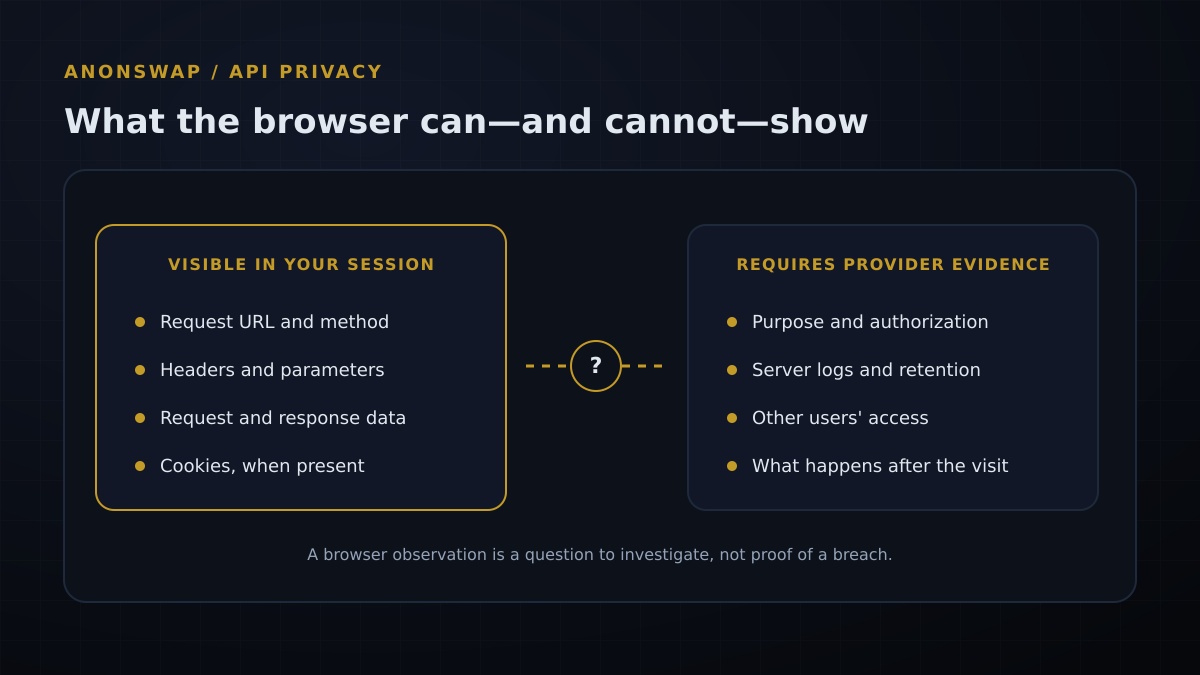
Conceptual diagram: visible browser data is only one part of the service's data handling.
6. Record questions and choose a proportionate next step
Write down the date, page type, general request category, and the question you want answered. Avoid including private values, full request URLs, screenshots, or downloaded logs. If a data field seems unnecessary, ask the provider what the field is for, whether it is linked to an account, and how long related records are retained.
If you believe a page exposed private information, stop using that page and contact the provider through a known, official support route. Share the least information needed to explain the issue. Do not publish a live request or attempt to change parameters, access another account, bypass a control, or repeat the request outside the normal page. Those steps are not part of a personal privacy check.
Common mistakes and privacy leaks
- Saving a HAR file for convenience. A capture may contain request and response data, cookies, or authentication values. Keep this review local and do not export or upload the capture.
- Assuming the word "API" means danger. Modern pages use APIs for ordinary functions. A domain or endpoint name alone does not establish what is collected or why.
- Treating a visible field as proof of a breach. The browser shows what this session received. It cannot establish whether the response was authorized, who else could access it, or what is stored on the provider's servers.
- Testing with a real wallet or account. A request may disclose identifiers. Use a public page and stop before authentication, wallet connection, address entry, or a transaction.
- Mistaking network privacy tools for data minimization. A Tor Browser or a visit to onion services changes the network context, not the meaning or necessity of fields returned by a service. This Firefox exercise does not assess Tor or onion-service privacy.
- Sharing unredacted screenshots or copied requests. Even a partial header or URL can include a session identifier. Describe the data category instead of distributing its value.
How AnonSwap fits into this workflow
AnonSwap's published materials describe its swaps as non-custodial and say users can transact without creating an account. Those statements describe the service's custody and account model; they are not a guarantee that every request contains no metadata or that no partner processes information. This article is not an audit of AnonSwap or any other provider.
If you compare a service's privacy practices, separate the questions: who controls the assets, what your browser sends, what a route partner receives, and what appears on a public blockchain. Routing partners, the asset and transaction volume, network providers, and local law can affect what a swap requires. Non-custodial swaps do not erase public transaction history or resolve every API privacy question.
The same caution applies when evaluating privacy tools or a private crypto workflow that involves Tor Browser or onion services. Network protections may address one part of a connection, while the service's API still receives information needed for a request. Don't infer anonymity from a browser setting, a domain type, or a product label.
Your Privacy Checklist for This Week
- Choose a public page that requires no login, wallet connection, or transaction.
- Open Firefox Network Monitor before loading it and inspect only your own session.
- Check request and response categories without copying private values or exporting a capture.
- Record questions—not secrets—and ask the provider how unexpected data is used and retained.
- Keep API observations separate from custody, blockchain, Tor, and legal questions.
Sources: Mozilla, Firefox Network Monitor and Network request details; Mozilla, Firefox 159.0.1 release notes (first offered November 3, 2026); OWASP, API Security Top 10 2023, API3: Broken Object Property Level Authorization. Documentation and release status checked November 6, 2026. Firefox Network Monitor documentation is not pinned to a specific browser build; the workflow was checked against Firefox 159.0.1. This article is for informational purposes only and is not legal or financial advice.
Published November 6, 2026. Last updated November 6, 2026.
Frequently asked questions
Can Firefox Network Monitor show what a crypto website sends to an API?
It can show requests and responses made by the page while the Network Monitor is recording, including request details such as headers, parameters, cookies, and response content when present. It does not explain the provider's purpose, authorization rules, or retention.
Does seeing a personal field in an API response prove a data breach?
No. A browser capture shows data returned to that browser for that session. Whether the field is appropriate, authorized, retained, or exposed to another person requires more context and evidence.
Is this check safe to perform on a crypto account?
Use a public, low-risk page without signing in, connecting a wallet, or starting a swap. Do not copy, export, or share request data, which can contain account details, cookies, or credentials.
Does this API privacy check make a swap anonymous?
No. Inspecting browser requests is an observation aid, not an anonymity measure. A route, its partners, the asset, the amount, network providers, public ledgers, and local law can affect data collection and visibility.